The good news? You don't need to be a tech expert to fix it. Most of these changes take under two minutes each, and together they dramatically reduce how much of your personal data gets collected, shared, and sold. Here are the 10 privacy settings that matter most – and exactly how to change them.
Top 10 at a Glance
Turn off ad tracking on your phone
Review and restrict app location permissions
Disable microphone and camera access for apps that don't need it
Turn off Google Activity tracking
Lock down your Facebook/Instagram data sharing
Enable private DNS on your phone
Switch to a privacy-focused browser (or fix your current one)
Audit your Google account data and delete what you don't need
Turn off Bluetooth and Wi-Fi auto-connect
Check and tighten your Apple ID or Google account permissions
1. Turn Off Ad Tracking on Your Phone
Both iPhone and Android let apps follow you across the internet to build an advertising profile. This is on by default. It's the reason you search for something once and then see ads for it everywhere for the next two weeks.
On iPhone: Go to Settings → Privacy & Security → Tracking. Turn off "Allow Apps to Request to Track." While you're there, go to Settings → Privacy & Security → Apple Advertising and switch off "Personalized Ads."
On Android: Go to Settings → Privacy → Ads. Tap "Delete advertising ID" – this stops apps from using a persistent ID to track you across platforms. On older Android versions, look for "Opt out of Ads Personalization" instead.
This one change won't make ads disappear, but it will make them far less targeted and stop your behavior from being sold to the highest bidder.
2. Review and Restrict App Location Permissions
Most apps ask for location access and then keep it running in the background indefinitely – even when you're not using them. A flashlight app does not need to know where you are. Neither does a recipe app, a calculator, or most social media platforms.
On iPhone: Go to Settings → Privacy & Security → Location Services. You'll see every app and its current permission level. For anything that doesn't have an obvious reason to track your location, change it from "Always" or "While Using" to "Never." For navigation apps, "While Using" is the right call.
On Android: Go to Settings → Location → App Permissions. Same idea – review anything set to "Allow all the time" and change it unless there's a clear reason.
Cutting background location access also saves battery, so this is a double win.
3. Disable Microphone and Camera Access for Apps That Don't Need It
Every app that's been granted microphone or camera access can theoretically listen in or activate your camera while running in the background. Most don't – but why give them the option?
On iPhone: Settings → Privacy & Security → Microphone (and then Camera). You'll see a list of every app with access. Flip off anything that has no obvious reason to use your mic or camera. Social media apps, browser apps, and games are common culprits.
On Android: Settings → Privacy → Permission Manager → Microphone (and Camera). Same process – audit the list and revoke anything suspicious.
If an app stops working after you revoke access and the feature it broke actually requires the mic or camera (like voice calling), you can always re-enable it. But you might be surprised how many apps you've forgotten you even gave access to.
4. Turn Off Google Activity Tracking
If you use Google Search, Chrome, YouTube, or Gmail, Google is building a detailed profile of you – your search history, watch history, location history, voice queries, and more. This is all stored under "My Activity" and used to target ads and personalize results.
Go to myaccount.google.com/data-and-privacy and look at "History settings." You'll find Web & App Activity, Location History, and YouTube History. You can pause all of them. You can also set auto-delete timers so anything older than 3 months is wiped automatically rather than stored indefinitely.
While you're here, scroll down to "Ad Settings" and turn off ad personalization entirely. It won't affect your ability to use Google products – it just stops them from using your data to target you.
5. Lock Down Your Facebook and Instagram Data Sharing
Meta collects data on you even when you're not using Facebook or Instagram. Through the Meta Pixel (a tracking script embedded in millions of third-party websites and apps), Meta knows what products you viewed, what you added to a cart, and what sites you visited. Then it uses that data to target you with ads.
On Facebook: Go to Settings & Privacy → Settings → Your Facebook Information → Off-Facebook Activity. You'll see a list of every business that has sent your data to Facebook. Tap "Disconnect Future Activity" to stop this going forward.
On Instagram: It uses the same backend – your off-platform activity settings on Facebook apply to Instagram too since they share the same account infrastructure.
Also go to Settings → Ads → Ad Preferences → Ad Settings on both platforms and turn off as many data-use toggles as you can. You'll still see ads, but they'll be based on far less information about you.
6. Enable Private DNS on Your Phone
DNS (Domain Name System) is the internet's address book – every time you visit a website, your device queries a DNS server to find it. By default, your DNS queries go to your internet provider, who can log every site you visit. Switching to a private, encrypted DNS server blocks that logging.
On Android: Go to Settings → Network & Internet → Advanced → Private DNS. Enter one.one.one.one (Cloudflare's privacy-focused DNS) or dns.google and save. Your queries will now be encrypted.
On iPhone: This is a little more involved. Download a trusted DNS app like 1.1.1.1 by Cloudflare (free) from the App Store, which configures encrypted DNS through a VPN profile. It takes about 60 seconds to set up.
This is one of the least-known privacy fixes but one of the most impactful for preventing your internet provider from logging your browsing habits.
7. Switch to a Privacy-Focused Browser (or Fix Your Current One)
Chrome is the most popular browser in the world, and it's also one of the most data-hungry. It's made by Google – a company whose entire business model is based on advertising – so it's built to collect information.
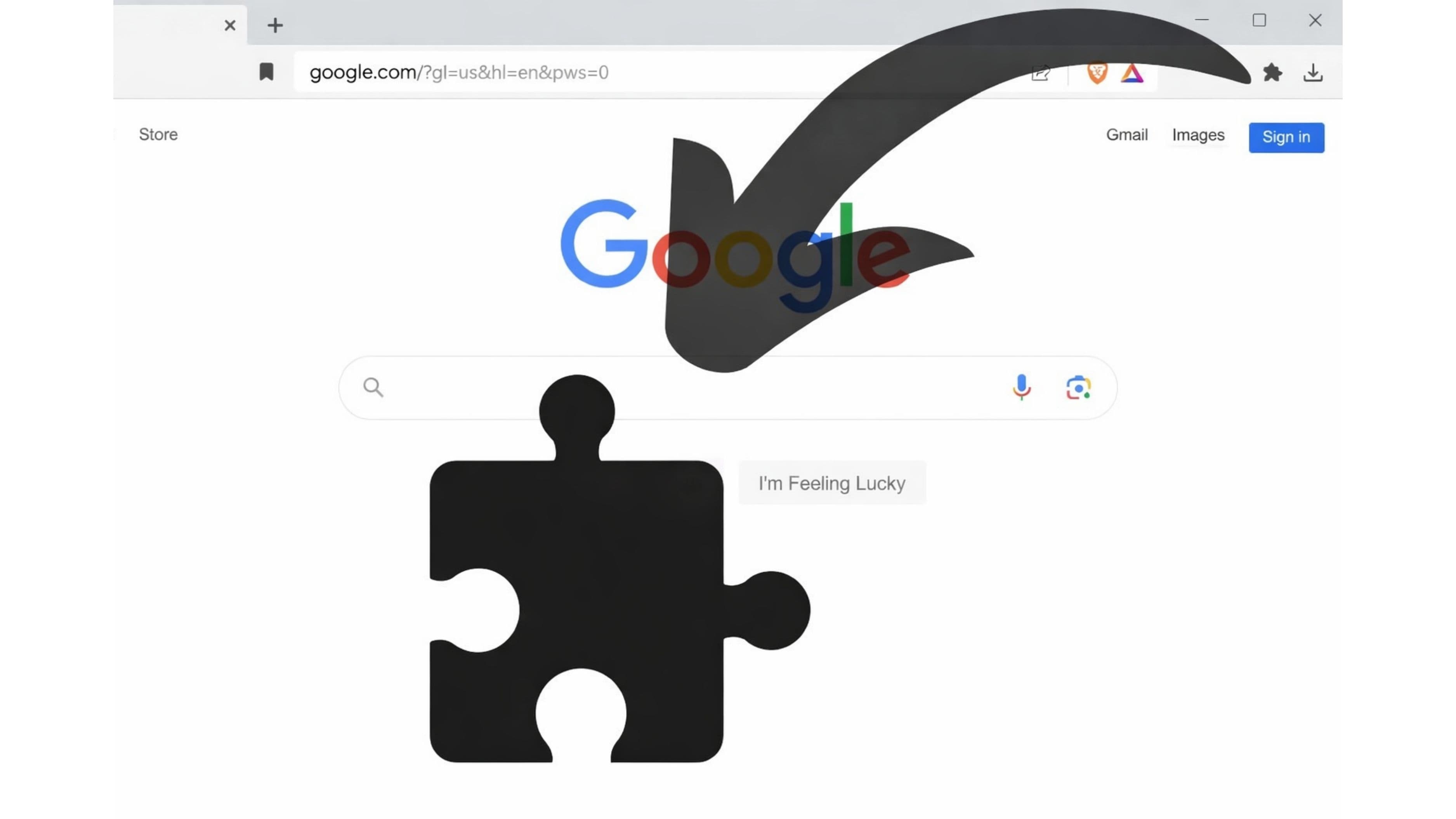
The fastest fix is to switch to Firefox or Brave. Both are free, fast, and block trackers by default. Brave blocks ads too. If you want to stay on Chrome, at minimum install the uBlock Origin extension, go to Chrome settings and turn off "Help improve Chrome's features and performance," and disable the ability for sites to send background sync requests.
On your phone, Safari is significantly better for privacy than Chrome on iOS. On Android, Firefox Focus is a lightweight, tracker-blocking option worth having as your default.
One more thing: check which browser is set as your default. Many phones reset this after updates. Make sure you're actually using the browser you think you're using.
8. Audit Your Google Account Data and Delete What You Don't Need
Most people have years of data sitting in their Google account that they've never looked at – location history with a timeline of everywhere they've been, every voice command they've given Google Assistant, every YouTube video they've watched since 2012.
Go to myaccount.google.com → Data & Privacy → Manage your data. From there, you can delete your entire search history, your location history map, your YouTube watch history, and more. You can do this in bulk (delete all) or by time range (delete everything older than one year).
Also check Google Photos if you use it – Google has access to every image in your library. If you're backing up photos to Google's servers, just be aware that they can and do scan photo content. For more privacy, consider switching to iCloud Photos (encrypted) or a service like Ente or Proton Drive for photo storage.
9. Turn Off Bluetooth and Wi-Fi Auto-Connect
When Bluetooth and Wi-Fi are on and searching, your phone broadcasts a unique identifier that can be used to track your physical location – even without GPS. Retailers, shopping malls, and advertisers use Bluetooth beacons and Wi-Fi probe signals to track foot traffic and build movement profiles.
The fix is straightforward: turn off Bluetooth and Wi-Fi when you're not actively using them, especially in public places. On both iPhone and Android, you can do this quickly from the Control Center or the notification shade without going into settings.
If you use Wi-Fi regularly, go into your Wi-Fi settings and turn off "Auto-Connect" for networks you don't control, especially open public networks. Also turn off "Auto-Join Hotspot" on iPhone – this prevents your phone from connecting to unknown networks automatically in the background.
10. Check and Tighten Your Apple ID or Google Account Permissions
Your Apple ID and Google account are the master keys to your digital life. Every app connected to them, every device signed in, and every third-party service with access is a potential data leak. Most people have granted access to dozens of third-party apps over the years and never cleaned it up.
For Apple: Go to appleid.apple.com → Sign In with Apple. You'll see every app and service that has access to your Apple ID. Remove anything you don't recognize or no longer use.
For Google: Go to myaccount.google.com → Security → Third-party apps with account access. Same process – audit and revoke anything outdated or unrecognized.
Also check your account's active devices. If there are phones, tablets, or computers listed that you no longer own, remove them immediately. A signed-in old device you no longer control is a serious security risk, not just a privacy one.
Quick Takeaway
You don't have to go full privacy-obsessed to meaningfully reduce how much data is being collected on you. These 10 settings cover the most common and most invasive data collection happening right now across your devices and accounts. Most take under two minutes each. Start with the ones that apply to platforms you use every day – location permissions, ad tracking, and Google activity are usually the highest-impact first steps.
Privacy isn't about having something to hide. It's about deciding who gets access to information about your life – and right now, that decision is being made by default settings designed to share as much as possible.
FAQ
Will changing these settings break any apps? In rare cases, yes – mostly for location-dependent features. If an app you rely on stops working after you revoke a permission, you can re-enable just that specific access. But the vast majority of apps work perfectly fine with reduced permissions.
Do these settings need to be re-checked regularly? Yes. App updates and OS updates can sometimes reset permissions. It's worth doing a quarterly audit – especially of app permissions and third-party account access – to make sure nothing crept back in.
What about a VPN – is that necessary? A VPN helps, but it's not a magic privacy fix. A trustworthy VPN (like Mullvad or ProtonVPN) encrypts your traffic from your internet provider. But it doesn't stop apps from collecting data on-device. These 10 settings address on-device and account-level privacy, which is where most everyday data collection actually happens.
Is it worth switching from Gmail for privacy? If privacy is a priority, yes. Proton Mail and Tutanota offer end-to-end encrypted email. Google does not read your Gmail to target ads anymore (they stopped in 2017), but your emails are still stored on their servers and accessible to them. It depends on your risk tolerance.
Can I trust Cloudflare's DNS? Cloudflare's 1.1.1.1 is widely trusted in the security community. They publish a privacy policy committing to not selling or sharing browsing data, and they have a strong track record. It's a significant privacy upgrade over your default ISP DNS.
What's the single biggest privacy win from this list? Turning off ad tracking and revoking broad location permissions will have the most immediate and noticeable impact for most people. Those two changes cut off the primary data streams advertisers rely on.
📚 Sources
Apple Support – Control privacy and security settings on iPhone: https://support.apple.com/guide/iphone/control-access-to-information-in-apps-iph251e92810/ios
Google Account – Data & Privacy Help: https://support.google.com/accounts/answer/9134998
Mozilla Foundation – Privacy Not Included Guide: https://foundation.mozilla.org/en/privacynotincluded/
Cloudflare – 1.1.1.1 Privacy and Terms: https://developers.cloudflare.com/1.1.1.1/privacy/public-dns-resolver/
Electronic Frontier Foundation – Surveillance Self-Defense: https://ssd.eff.org
Meta – Off-Facebook Activity Explained: https://www.facebook.com/help/2207256726243732
Android Help – Manage App Permissions: https://support.google.com/android/answer/9431959
Brave Browser – Privacy Features Overview: https://brave.com/privacy-features/
ProtonVPN – What is a VPN and how does it protect privacy?: https://protonvpn.com/blog/what-is-a-vpn/
The New York Times Wirecutter – Best Browser for Privacy: https://www.nytimes.com/wirecutter/reviews/best-browser-for-privacy/