Top 10 at a Glance
External Monitor (or Second Screen)
Mechanical or Premium Ergonomic Keyboard
Mesh Wi-Fi System
Noise-Cancelling Headphones
Ergonomic Chair or Standing Desk Converter
Webcam with Proper Lighting
USB-C Hub or Docking Station
Blue Light Blocking Monitor or Filter
Smart Power Strip with Surge Protection
Dedicated Desk Microphone
1. External Monitor (or Second Screen)
What it is: A standalone display connected to your laptop or desktop, giving you more screen real estate to work with.
Why it matters: Research consistently shows that a second monitor can boost productivity by 20–30% for tasks that require multitasking, referencing, or keeping multiple windows open. Switching between tabs instead of having two windows side by side is one of the most common sources of lost focus time.
How to apply it: For most home office setups, a 27-inch monitor at 1440p resolution hits the sweet spot between display quality and price. If you're doing video editing or design work, go 4K. If desk space is limited, an ultrawide 34-inch monitor replaces two smaller screens in a single unit.
Key benefit: Fewer tab switches, more context on screen at once, significantly less mental overhead during complex tasks.
Best for: Anyone doing knowledge work, writing, analysis, coding, design, or video calls where you need reference material visible while talking.
Tip: Pair your monitor with a monitor arm instead of using the included stand. It frees up desk space and lets you dial in the exact height and angle for your posture.
2. Mechanical or Premium Ergonomic Keyboard
What it is: A keyboard designed for comfort, durability, and typing feel – either with mechanical switches that provide tactile feedback, or ergonomic designs that reduce wrist and hand strain.
Why it matters: If you type several thousand words a day, your keyboard is one of the highest-impact tools you own. Membrane keyboards that ship with most desktops are mushy, imprecise, and contribute to finger fatigue over long sessions. A better keyboard reduces errors, improves typing speed, and – critically – prevents the repetitive strain injuries that derail productivity long-term.
How to apply it: For most people, a tenkeyless (no numpad) mechanical keyboard with quiet switches is the best starting point. If you have wrist pain or type for extended periods, look at split ergonomic keyboards like the Logitech ERGO K860 or Kinesis Freestyle. Wireless is a plus for keeping the desk clean.
Key benefit: Faster, more accurate typing with less fatigue – especially noticeable in the second half of a long workday.
Best for: Writers, developers, data entry roles, anyone spending 4+ hours typing daily.
Warning: Switch type matters. Clicky switches (like Cherry MX Blue) are satisfying but loud on calls. If you're in video meetings frequently, opt for quieter linear or tactile switches.
3. Mesh Wi-Fi System
What it is: A multi-unit Wi-Fi system that replaces your single router with a network of nodes, eliminating dead zones and providing consistent signal throughout your home.
Why it matters: A bad internet connection is a productivity killer that disguises itself as other problems. Dropped video calls, sluggish uploads, VPN instability, and buffering aren't just annoying – they interrupt focus at the worst moments. Most ISP-provided routers are mediocre at best. If your home office isn't in the same room as your router, you're probably not getting the signal your plan is paying for.
How to apply it: Systems like Google Nest WiFi Pro, Eero Pro 6E, or TP-Link Deco provide whole-home coverage that adapts as you move around. Place one node near your modem and one or two others to cover the office and any other frequently used spaces.
Key benefit: Consistent, reliable connection where you actually work – not just where the router happens to be.
Best for: Anyone whose home office is more than one room away from the router, or anyone who regularly experiences call drops or upload lag.
Tip: If hardwiring an ethernet cable from your router to your desk is possible, do that first – it's free and more reliable than any wireless upgrade.
4. Noise-Cancelling Headphones
What it is: Over-ear or in-ear headphones with active noise cancellation (ANC) that uses microphones to detect and counteract ambient sound, reducing the distraction of background noise.
Why it matters: Deep work requires concentration, and environmental noise is concentration's biggest enemy when working from home. Barking dogs, street noise, household activity – ANC headphones create an acoustic environment that supports focus without needing to move rooms or resort to earplugs.
How to apply it: Sony WH-1000XM series and Bose QuietComfort headphones are the benchmarks for over-ear ANC. For all-day wear, look for lightweight over-ear options rather than in-ear AirPods-style buds, which cause fatigue over long sessions. Transparency mode – which lets you hear your environment without removing the headphones – is useful for working in shared spaces.
Key benefit: Controlled acoustic environment anywhere, on demand. Also dramatically improves call audio by isolating your microphone from background noise.
Best for: Anyone working in a home with other people, near a street, or in any space with unpredictable ambient noise.
Tip: Save your most demanding focused work for when the headphones are on. Training your brain to associate them with deep work mode strengthens the habit over time.
5. Ergonomic Chair or Standing Desk Converter
What it is: Seating designed to support proper posture over extended periods, or a desktop riser that converts a standard desk to a sit-stand setup.
Why it matters: Back pain and poor posture aren't just physical problems – they fragment your attention and drain your energy throughout the day. Eight hours of poor sitting position is cumulative damage that shows up as afternoon fatigue, shoulder tension, and long-term injury risk. The chair you sit in is one of the most cost-justified investments in your home office.
How to apply it: Chairs like the Herman Miller Aeron, Steelcase Leap, or more affordable options like the Branch Ergonomic Chair provide lumbar support, adjustable armrests, and seat depth customization. If a new chair isn't in the budget, a standing desk converter like the Flexispot M7 lets you alternate between sitting and standing throughout the day, which reduces the strain of prolonged static posture.
Key benefit: Sustained energy and focus through the full workday, reduced injury risk, better posture that improves how you feel off the desk too.
Best for: Anyone spending 5+ hours at a desk daily. Non-negotiable for anyone with existing back, neck, or shoulder pain.
Warning: A standing desk is only useful if you actually stand. Schedule reminders or use a smart mat that prompts you to shift position throughout the day.
6. Webcam with Proper Lighting
What it is: A dedicated external camera for video calls – not your laptop's built-in – paired with a ring light or key light that illuminates your face correctly.
Why it matters: Video quality is a proxy for professionalism on calls, whether you're presenting to clients, in team meetings, or interviewing. Laptop webcams are typically low resolution and positioned at an unflattering angle. Pair that with harsh backlighting or flat overhead light and you look washed out or shadowed. This is fixable with $100–$200 in gear.
How to apply it: The Logitech C920 is the reliable standard for video calls. For higher quality, the Logitech Brio 4K or Elgato Facecam step up the resolution. For lighting, a key light positioned slightly above eye level and to the side (rather than directly behind your screen) creates a natural, flattering effect. The Elgato Key Light and Lume Cube Panel both offer app-controlled brightness and color temperature.
Key benefit: You look sharp, competent, and fully present on calls – which matters more than most people admit.
Best for: Anyone on video calls for more than an hour per day, especially client-facing roles or remote teams where first impressions are formed through screens.
Tip: Check your background before the camera. A clean, simple background – even a blank wall – improves how you're perceived on calls more than most tech upgrades.
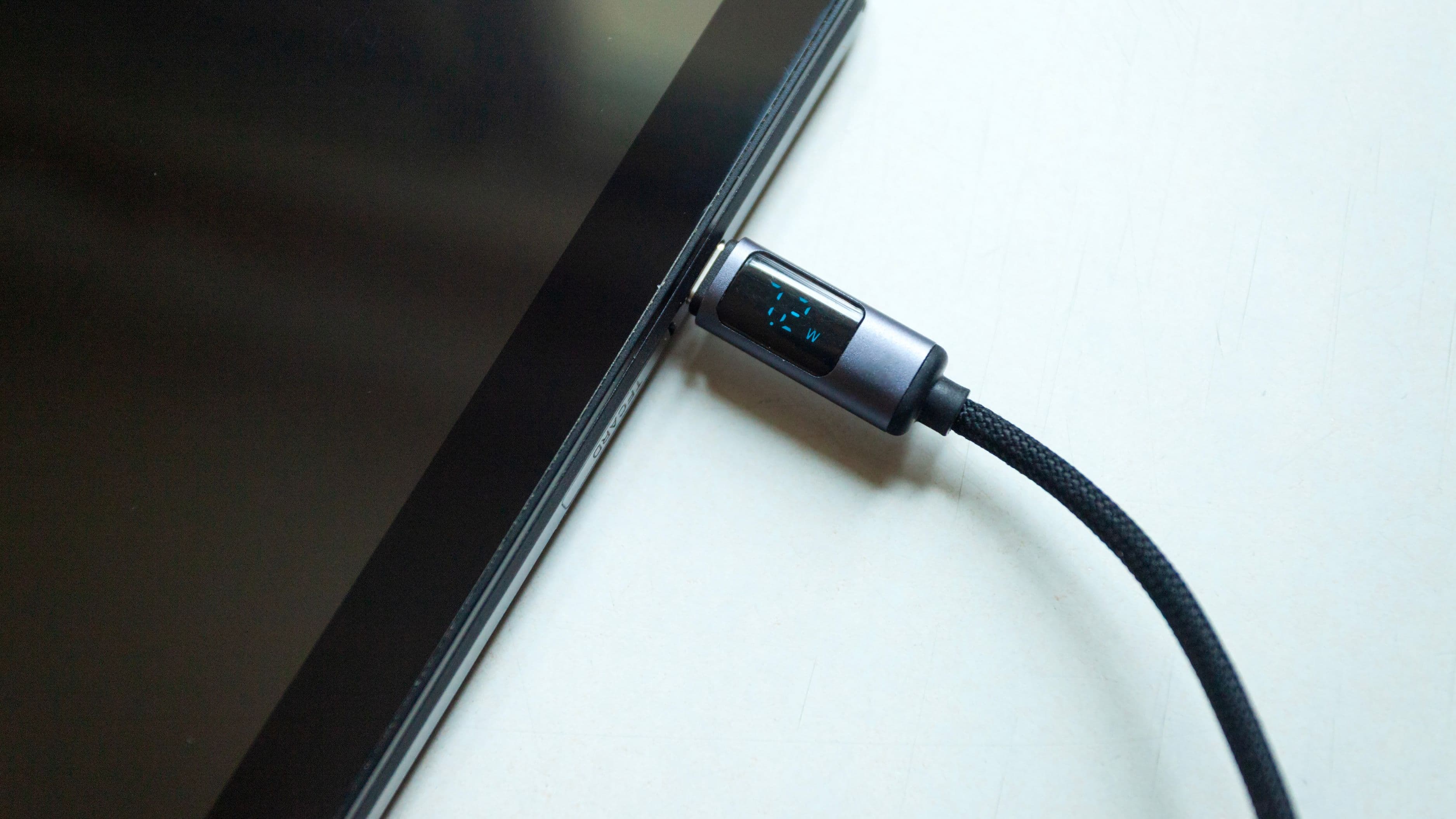
7. USB-C Hub or Docking Station
What it is: A device that expands the number and type of ports available from your laptop, allowing you to connect multiple monitors, peripherals, ethernet, and power through one connection.
Why it matters: Modern laptops, especially thin ultrabooks, have traded port variety for slimness. A USB-C hub turns one cable into a full desk setup: charging, external display, keyboard, mouse, ethernet, SD card, and more – all connected and disconnected in a single motion. This is what makes working from a laptop feel like working from a workstation.
How to apply it: For basic setups (one monitor, charging, peripherals), a bus-powered hub like the Anker 7-in-1 works well. For power users running dual monitors or needing high-wattage charging passthrough, invest in a dedicated docking station like the CalDigit TS4 or Belkin Thunderbolt 4 Dock, which connect via Thunderbolt and handle more bandwidth.
Key benefit: One cable in, full workstation out. Dramatically cleaner desk and faster transition in and out of your home office setup.
Best for: Laptop users who want a desktop-grade experience without a desktop. Essential if you move between locations or switch between personal and work machines.
8. Blue Light Blocking Monitor or Screen Filter
What it is: A monitor with built-in blue light reduction modes, or an adhesive/clip-on filter that reduces the blue light wavelengths emitted by your screen.
Why it matters: Prolonged screen exposure, especially in the hours before sleep, suppresses melatonin production and disrupts sleep quality. Poor sleep degrades focus, memory, and decision-making the following day – a cycle that compounds over time. Reducing blue light exposure, particularly in the afternoon and evening, is one of the lower-effort ways to protect sleep quality.
How to apply it: Most modern monitors and operating systems have built-in night mode or eye care settings. Activate these and set them to increase automatically in the late afternoon. If you want stronger protection or have multiple screens, stick-on filters like the VINTEZ screen protector provide consistent filtering without changing color temperature dynamically.
Key benefit: Better sleep quality, reduced eye fatigue during long sessions, less headache and strain after full-day screen use.
Best for: Anyone working evening hours, anyone who frequently experiences eye strain, or anyone whose sleep quality has declined since starting remote work.
Tip: Pair screen filtering with a 20-20-20 rule: every 20 minutes, look at something 20 feet away for 20 seconds. Reduces focal tension that no filter can address.
9. Smart Power Strip with Surge Protection
What it is: A power strip that combines surge protection, individual outlet control, USB charging ports, and often smart home integration – letting you manage your devices' power consumption from an app or voice command.
Why it matters: Home offices are full of devices that draw standby power when not in use: monitors, chargers, speakers, printers. A smart power strip lets you cut power to everything with one tap at the end of the day, reducing phantom load and protecting equipment from power surges. It's a low-drama upgrade that quietly improves the setup.
How to apply it: The Kasa Smart Power Strip and Wemo Surge Protector are well-reviewed options with app control and scheduling. Run your desk tech through one smart strip and set it to shut off on a schedule so you're not manually managing power every evening.
Key benefit: Equipment protection, energy savings, and a reliable off switch for the full desk setup.
Best for: Anyone with a lot of desk peripherals, anyone in an area with unstable power, or anyone who wants to reduce energy consumption from home office gear.
10. Dedicated Desk Microphone
What it is: A standalone condenser or dynamic microphone designed for voice capture, mounted on an arm or desktop stand at your workstation.
Why it matters: Your laptop's built-in microphone captures everything in the room equally: keyboard clicks, background noise, room reverb, and your voice all blended together. A dedicated mic positioned close to your mouth captures your voice clearly and rejects ambient noise, making you significantly easier to understand on calls, recordings, and voice memos.
How to apply it: For most home office users, the Blue Yeti or Rode NT-USB Mini are excellent entry points – USB, easy setup, and dramatically better quality than any laptop mic. Mount it on a boom arm (the Rode PSA1 is reliable) so it stays positioned correctly without occupying desk space. If you're doing any podcasting, client presentations, or recorded content, the difference in audio quality is immediately audible.
Key benefit: Clear, professional voice audio on every call and recording. First-impression audio quality that communicates competence without saying anything extra.
Best for: Anyone on video calls for significant portions of the day, remote presenters, content creators, or anyone whose current call audio quality is a regular complaint.
Tip: A good mic paired with a simple acoustic panel behind your monitor reduces room echo significantly and makes even a basic microphone sound cleaner.
Quick Takeaway
You don't need to upgrade everything at once. Start with the change that will have the most immediate impact on your specific pain points. If you're on calls all day, prioritize the webcam, lighting, and microphone. If you're struggling with focus, start with noise-cancelling headphones and reliable Wi-Fi. If your back hurts by noon, the chair comes first. Layer in the rest over time as the budget allows – each upgrade compounds on the last.
FAQ
What's the highest-impact single upgrade for a home office? An external monitor, for most people. More screen space directly reduces the friction of multitasking and is the most consistently cited productivity booster in remote work setups.
How much should I budget for a good home office setup? A strong core setup – monitor, decent chair, keyboard, headphones – can be assembled for $500–$800 if you're selective and willing to buy refurbished. Premium setups run $1,500–$3,000+ but aren't necessary for most workflows.
Is it worth upgrading audio gear even if I'm not a content creator? Yes. If you're in video calls regularly, audio quality directly affects how you're perceived. Bad audio makes people seem less credible and causes listener fatigue – good audio creates the opposite impression.
Should I get a standing desk or just a better chair? Both are better than either alone, but if forced to choose, start with the chair. You'll spend more time sitting than standing regardless of your intentions, so the seated position matters more for daily comfort and long-term health.
How do I keep my home office setup from becoming cluttered? A docking station, a cable management tray, and a monitor arm with cable routing built in eliminate most desk clutter. Wireless peripherals help too – fewer cables means less visual noise and more available desk surface.
📚 Sources
University of Utah – Dual Monitor Productivity Study: https://www.cs.utah.edu/~pandey/courses/cs6530/f09/papers/dual-monitor.pdf
American Optometric Association – Computer Vision Syndrome: https://www.aoa.org/healthy-eyes/eye-and-vision-conditions/computer-vision-syndrome
Harvard Health – Blue Light and Sleep: https://www.health.harvard.edu/staying-healthy/blue-light-has-a-dark-side
Occupational Safety and Health Administration – Ergonomics for Computer Workstations: https://www.osha.gov/etools/computer-workstations/components/chairs
Wirecutter – Best Webcams: https://www.nytimes.com/wirecutter/reviews/the-best-webcams/
Wirecutter – Best Noise-Cancelling Headphones: https://www.nytimes.com/wirecutter/reviews/best-noise-canceling-headphones/